Clean and Modern Business Card: Design Mistakes to Avoid for Professional Results
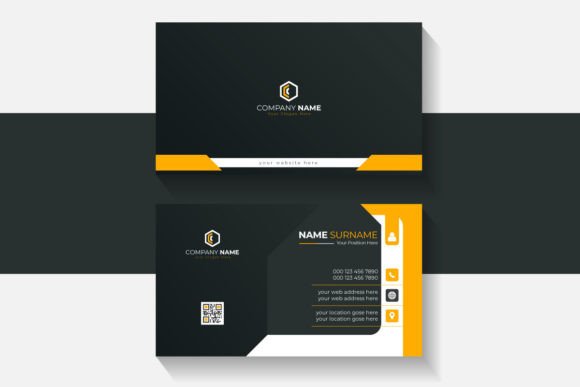
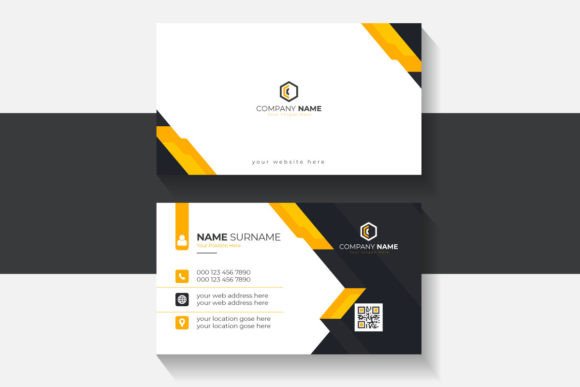
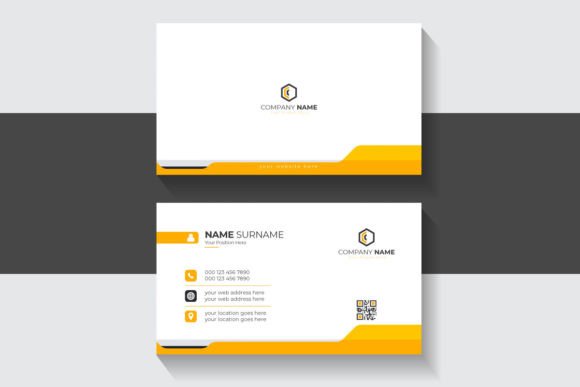
When you first see a “Clean and Modern Business Card” template, especially one with a abstract yellow and white layout, a familiar thought crosses your mind: “This will make my brand look sharp and professional.” And you’re right — a well-designed card is often the first tangible handshake between you and a potential client, partner, or customer. The clean lines, thoughtful use of negative space, and subtle color accents can leave a lasting impression. But the journey from downloading a template to printing a flawless card involves more than just opening an EPS file and hitting “print.” Many professionals, freelancers, and small business owners rush this process, only to end up with cards that look washed out, pixelated, or just plain confusing. Let’s walk through the most common mistakes — and how to avoid them — so your business card works as hard as you do.
What Makes a Business Card Truly “Clean and Modern”?
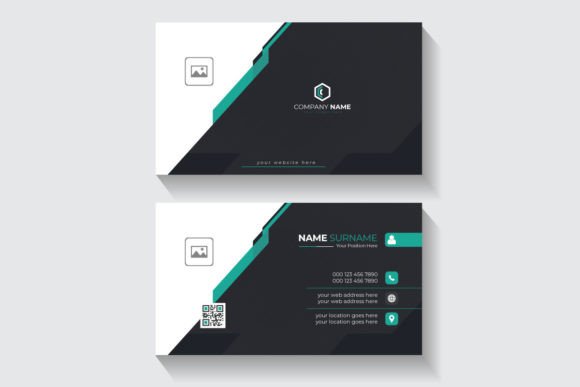
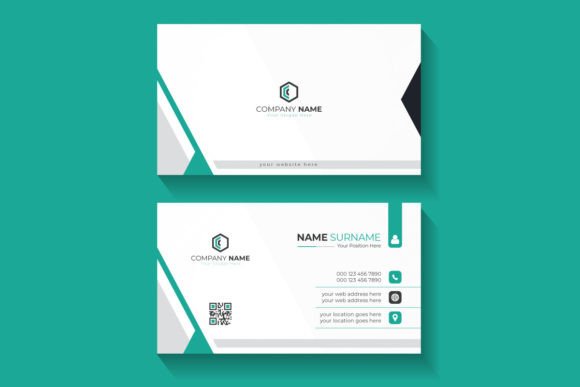
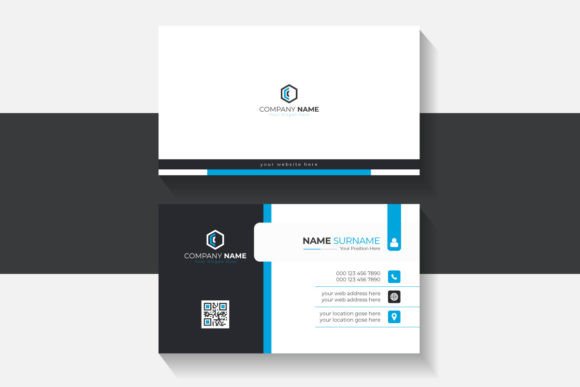
A clean and modern business card does not rely on excessive decoration. Instead, it uses hierarchy, breathing room, and a restrained palette to communicate professionalism. The template you’re considering likely features an abstract yellow and white layout, designed in RGB color mode at 1200×800 pixel size, with free fonts and fully editable Illustrator EPS files. That sounds great on paper, but the devil — and the delight — is in the details. Understanding the structure of such a template helps you make informed edits and avoid the pitfalls that trip up even experienced designers.
Mistake 1: Assuming RGB Is Always Correct for Print
One of the most overlooked details in digital business card templates is the color mode. Many templates, including this one, are built in RGB mode — ideal for screens, but not for commercial printing. If you send an RGB file to a print shop, the colors will shift, often appearing duller or more muted than expected. Yellow can turn muddy; whites may pick up unwanted tints. This is not a flaw in the template — it’s a simple workflow misunderstanding.
What to do instead: Before you start editing, convert the document to CMYK if you plan to print it physically. Most professional print vendors require CMYK. Keep the original RGB version for digital use (like your website or social media banners) and create a separate print file. This way you get the best of both worlds without unexpected color surprises.
Mistake 2: Ignoring the Real Pixel vs. Print Dimension Relationship
The template states “Size 1200×800 pixel.” That’s great for a digital mockup or a social media graphic, but actual business cards are measured in inches or millimeters. 1200×800 pixels at 72 dpi (the default for many screen designs) would produce a physical card about 16.7 by 11.1 inches — far larger than a standard business card. If you try to scale it down, you risk losing resolution or distorting your layout.
Practical fix: Determine the final print size first — standard is 3.5″ x 2″ in the US (89mm x 51mm in many other countries). Then set your document to that size at 300 dpi for crisp output. If your template is at 1200×800 px, you can resize the artboard and adjust elements accordingly. Many templates are made at a larger canvas so you can move text and graphics freely; just be sure to resize before exporting.
Mistake 3: Treating “Free Fonts” as a License to Use Anywhere
“Free Font Used” is a common selling point — and often a red flag if you don’t check the license. Many free fonts are only free for personal use or require attribution in commercial projects. Using such a font on your business card without verifying the terms could lead to legal issues or, at the very least, an unprofessional look if the font is missing from your print vendor’s library.
Better approach: Download the actual font files from a reputable source (Google Fonts, Font Squirrel, or the designer’s site). Confirm that the license covers commercial use for printed materials. If you can’t find that information, consider swapping for a similar, properly licensed typeface. A clean, modern card deserves type that is both legal and reliable across systems.
Mistake 4: Overwriting the EPS File Without Understanding Layers
The template includes “Fully Editable Files Included – Illustrator EPS Files.” That’s fantastic for customization. But many users open an EPS and immediately start deleting, moving, or recoloring objects without first understanding the layer structure or the role of smart objects. The result? A card that loses its hierarchy or becomes visually chaotic.
Smart editing workflow: Open the EPS in Adobe Illustrator (or a compatible vector editor) and explore the Layers panel. Identify which elements are backgrounds, which are decorative accents, and which are text placeholders. Make small, deliberate changes: update the name, job title, phone number, and website. Adjust the abstract yellow accent if needed, but keep its position and size consistent with the original design. If the template uses global colors, edit those for consistent branding across the card. This preserves the professional balance that made you choose the template in the first place.
Mistake 5: Forgetting Bleed, Trim, and Safety Margins
Many clean business card templates are designed without print-specific features like bleed (extra space beyond the trim line) or safety margins (the area where text should not be placed). If your yellow background runs right to the edge of the 1200×800 canvas, a slight misalignment during printing could leave a white sliver or cut off important text.
How to avoid this: After you’ve edited your card, add a bleed of at least 3mm (1/8 inch) on all sides. Extend your background color and any images into that bleed area. Keep all essential text and logos at least 5mm away from the final trim line. If your template came without bleed, you can recreate it by expanding the artboard and stretching your background elements outward. Most online print services provide templates with built-in guides — use them.
Mistake 6: Choosing a Template That Doesn’t Align With Your Industry
A yellow-and-white abstract layout can look incredibly fresh for a creative agency, a wellness coach, or a tech startup. But if you’re a lawyer, an accountant, or a funeral director, that same palette might send the wrong signal. It’s not that yellow is bad — but abstract yellow and white carries connotations of energy, innovation, and casual creativity. If your brand relies on trust, tradition, or seriousness, consider whether the template’s mood matches your message.
Alternative perspective: You can use the template as a starting point and shift the color accent to a more suitable hue — a navy blue, charcoal, or muted green — while keeping the clean layout. The “clean and modern” structure is what matters; color is adjustable. The template’s RGB mode makes it easy to experiment with color schemes before committing.
Mistake 7: Neglecting Digital Versions of the Same Card
Many people download a business card template purely for print and forget how useful a digital version can be. The 1200×800 pixel size is actually perfect for screen sharing, virtual networking cards, or even as a small banner for email signatures. If you skip creating a digital version, you miss a free opportunity to extend your reach.
Simple fix: After finalizing your print version, export a second file as a high-resolution PNG (at 1200×800 pixels) for digital use. Save the RGB version separately. Share it in your email signature, upload it to your LinkedIn profile’s featured section, or text it to clients who you meet online. This doubles the value of your template investment with almost no extra work.
Mistake 8: Relying on One File Format for Every Vendor
The template’s EPS files are excellent for vector editing, but not every print shop accepts EPS directly. Some require PDF, AI, or TIFF. Others prefer JPEG or PNG for quick proofs. Sending an EPS to a shop that doesn’t support it can cause delays, interpretation errors, or lower quality output.
Smart preparation: After editing, export a standard PDF/X-1a or PDF/X-4 file that embeds fonts and flattens transparency. This is the most universally accepted format for commercial printing. Keep your original EPS as the editable master, but always deliver a clean PDF for production. If the vendor needs a specific format, export from that PDF. This small step prevents the last-minute panic of “they can’t open my file.”
Mistake 9: Not Testing the Typographic Hierarchy
Clean designs often use sans-serif fonts, all-caps for names, and generous kerning. But if you simply type your information into the placeholders without adjusting font size, weight, or spacing then the balanced look you admired can quickly become unbalanced. For example, if your name has ten characters and the sample name had only five, your text may overflow its space or look cramped.
Refinement tip: After entering your content, zoom out to 50% and evaluate the card as a whole. Is your name the most prominent element? Is the phone number easy to locate? Does the yellow accent still guide the eye? Adjust sizes by a few points, tweak tracking, or use the type tool to recompose lines. A truly clean card never looks cluttered, so trim text ruthlessly. Remove unnecessary words like “phone” or “email” — let the icon or spacing indicate the information type.
Putting It All Together: One Card That Works Everywhere
A clean and modern business card template with an abstract yellow and white layout has all the ingredients for a powerful networking tool. But its success depends on how carefully you handle the details — color mode, font licensing, print dimensions, bleed, and file formats. By avoiding these common mistakes, you turn a good template into a great representation of your brand. Whether you’re a freelancer handing it out at a conference, a marketer mailing it with a proposal, or a small business owner leaving it on the counter, the card should feel inevitable — not accidental. Take the extra time to set up your file properly, and you’ll impress everyone who receives it, from the first glance to the follow-up call.
Remember, the goal isn’t just a card that looks clean on screen. It’s a card that prints cleanly, communicates clearly, and builds credibility long after the exchange. With these corrections in mind, you can confidently edit, produce, and distribute your business card knowing it will enhance your professional image — not undermine it.